

If you’re using PostHog to monitor user behavior and product analytics, the PostHog Slack integration is a powerful way to stay informed in real time. In this step-by-step guide, you’ll learn how to send event alerts from PostHog directly to a Slack channel.
Quick answer
To send PostHog event alerts to Slack, go to Settings > Integrations > Slack Integration and click Connect. Then create Slack as a destination, configure event matchers and trigger options, select a workspace and channel, and test and enable notifications.
Requirements
Before you begin, make sure you have the following:
- A PostHog account with the necessary permissions
- Access to a Slack workspace
- If you still need to install PostHog on WordPress, start with our WordPress installation guide.
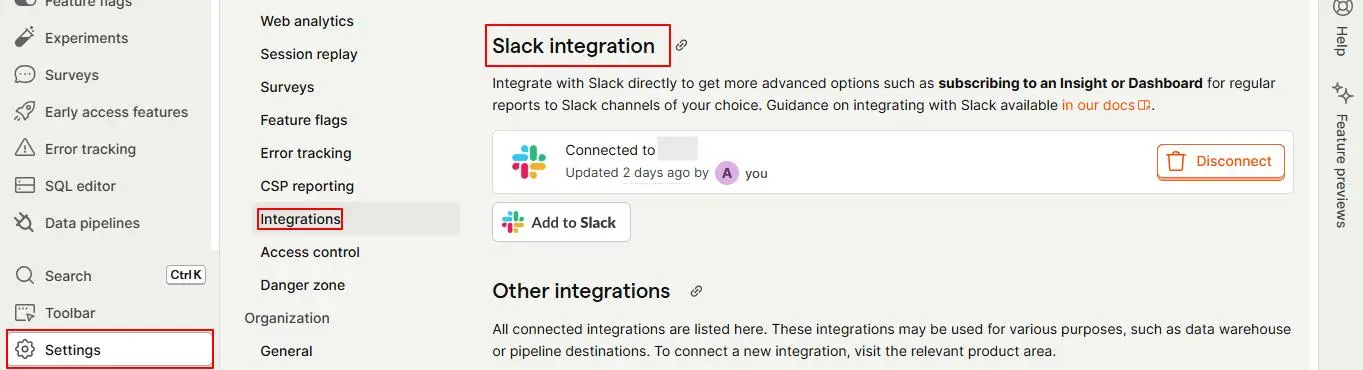
To start your PostHog Slack integration, navigate to Settings > Integrations > Slack Integration, then click the Connect button to begin the setup.
Step 1: Create a Slack Channel and Invite PostHog Bot
In your Slack workspace:
- Create or choose a channel where you’d like to receive the notifications.
- In the channel, type the following command to invite the PostHog bot: /invite @PostHog
Step 2: Set Up Slack as a Destination in PostHog
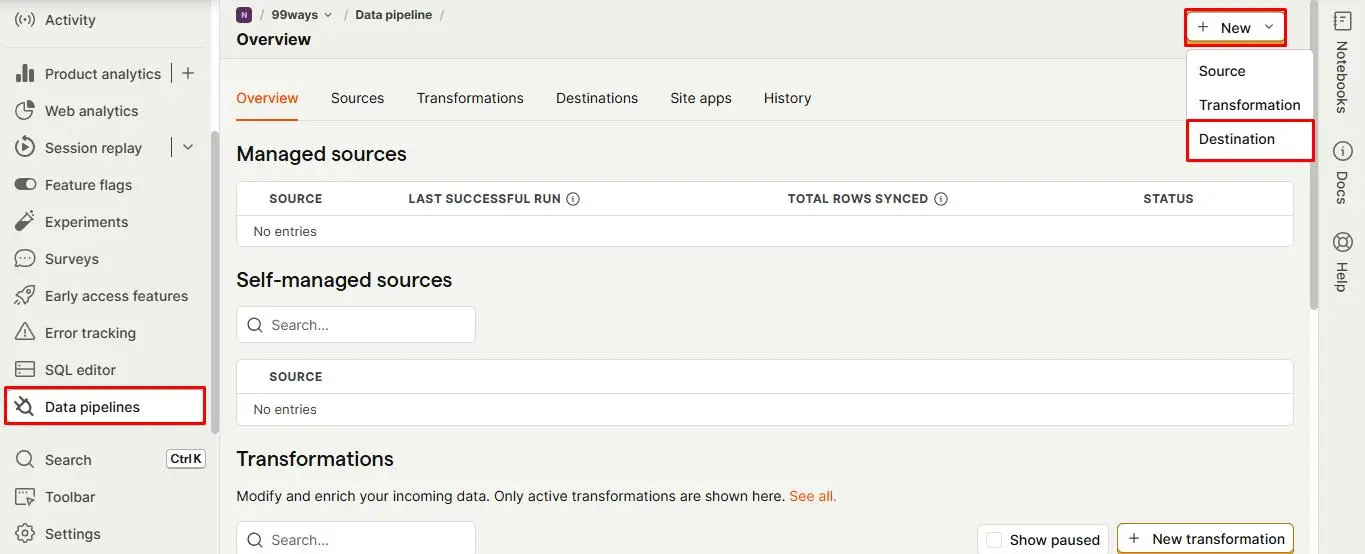
- Log in to your PostHog dashboard.
- From the left sidebar, go to Data pipelines.
- Click the New button and select Destination from the dropdown.
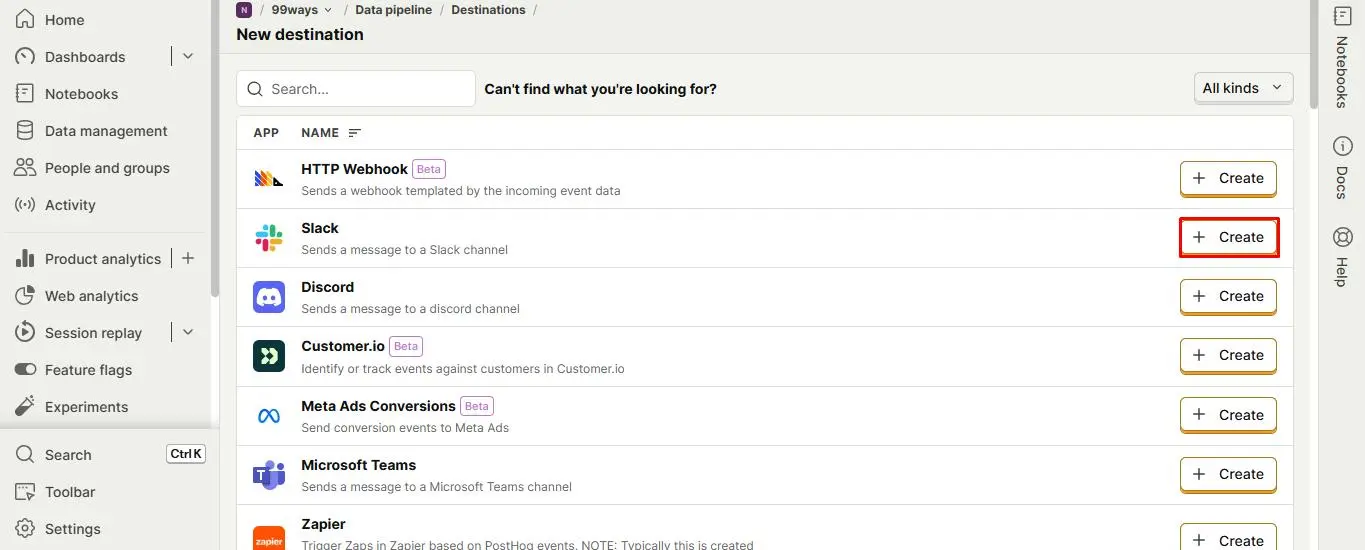
- On the "New Destination" page, browse the list of available integrations.
- Find Slack and click Create.
Step 3: Configure Slack and Define Event Matchers
Fill out the configuration form:
- Name & Description: Use clear and descriptive labels (e.g., "Slack Event Alerts").
- Filter out internal and test users: Enable this option to avoid noise from test data.
- Filters: Use the Add filter button to target specific event properties.
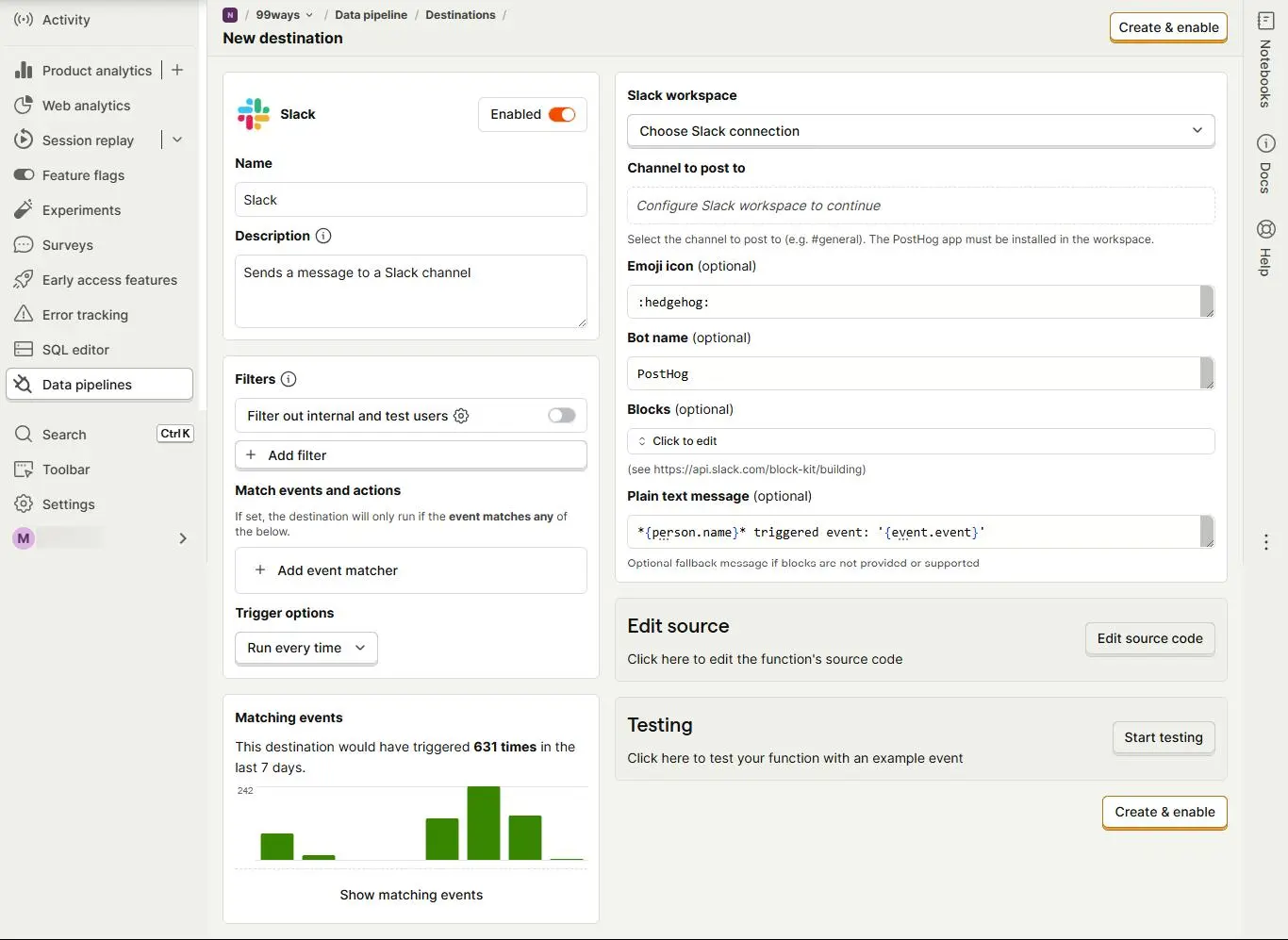
- Match event and actions: Click Add event matcher, then select the event or action that should trigger the Slack notification.
- Trigger options: Set how often notifications should be sent (e.g., once per minute or once per day) based on your monitoring needs.
Step 4: Connect to Slack Workspace
- Choose your Slack workspace.
- From the dropdown, select the specific Slack channel where you want alerts to be posted.
Step 5: Test and Enable Notifications
- Click the Start testing button to verify that your event setup works correctly. For a deeper check, use our PostHog audit.
- Once everything is configured properly, you’ll then see a sample notification sent directly to your selected Slack channel, just as it will appear during actual use.
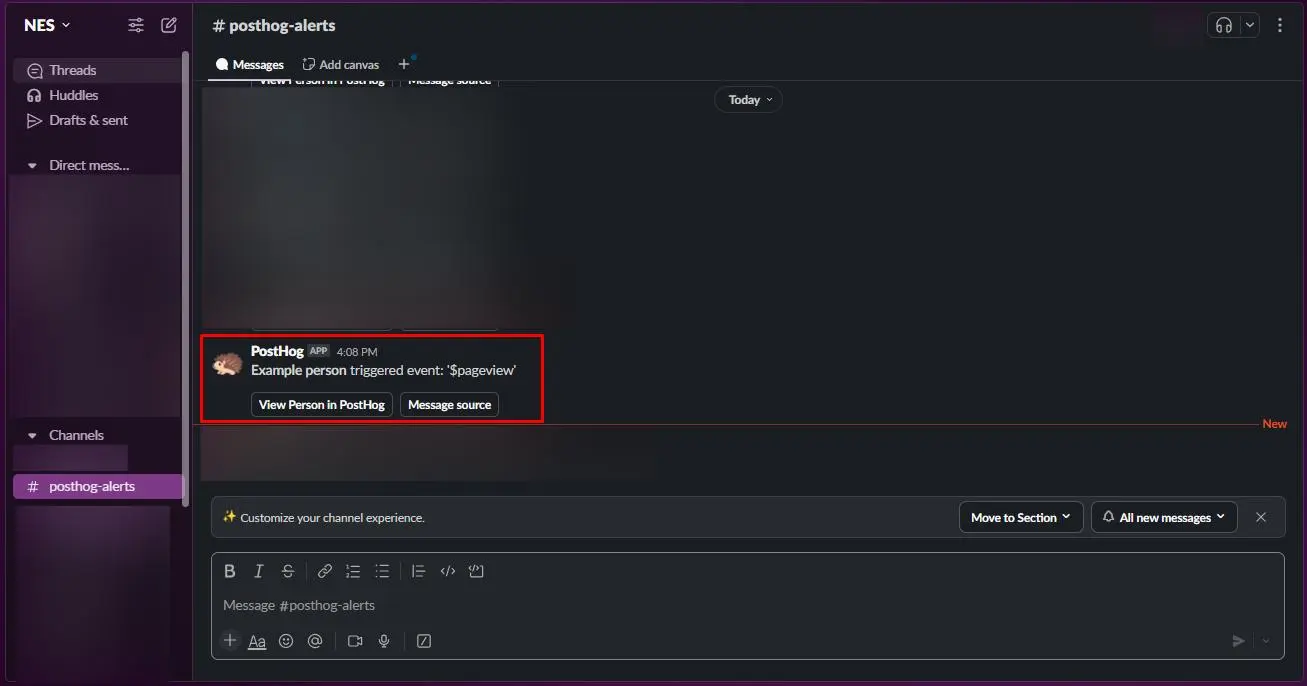
Once the test is successful, click Create and enable to activate the integration.
Read this guide to see how PostHog describes integrating with Slack.
Frequently asked questions
What do you need before connecting PostHog to Slack?
You need a PostHog account with the necessary permissions and access to a Slack workspace.
Do you need a new Slack channel?
No. You can create a channel or choose an existing channel where you want to receive the notifications.
How do you choose which events send Slack notifications?
Click Add event matcher, then select the event or action that should trigger the Slack notification.
Can you limit alerts using event properties?
Yes. Use Add filter to target specific event properties.
How can you keep test activity out of Slack alerts?
Enable Filter out internal and test users to avoid noise from test data.
How often can PostHog send Slack notifications?
Use Trigger options to set how often notifications are sent, such as once per minute or once per day, according to your monitoring needs.
How do you test the Slack destination?
Click Start testing to verify that the event setup works correctly.
When should you enable the destination?
After the test succeeds, click Create and enable to activate the integration.
Related resources
You can follow this guide to learn how to set up event alerts in PostHog and get notified instantly.